Android Backup Instructions
This guide is for clients who need to export their text messages from an Android phone. The exported file will be sent to your attorney or paralegal for processing with TextExhibit.
Overview
You will use a free app called SMS Backup & Restore to export your text messages to an XML file. This file contains all your SMS and MMS messages, including any photos or videos.
Step 1: Install SMS Backup & Restore
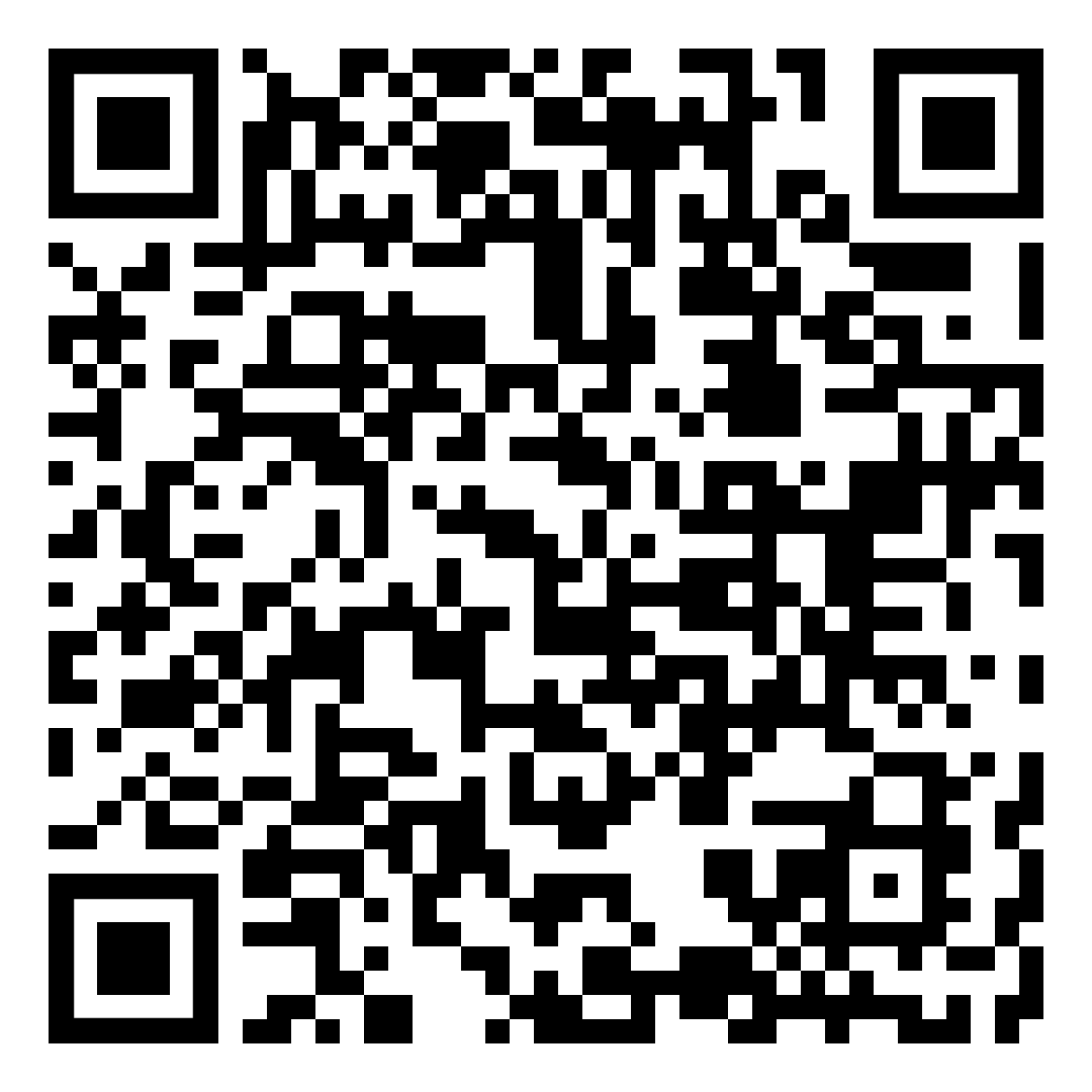
Download and install the SMS Backup & Restore app from the Google Play Store:

Step 2: Create a Backup
- Open the SMS Backup & Restore app
- Tap “Back Up Now” (you may have to tap on the three horizontal lines first)
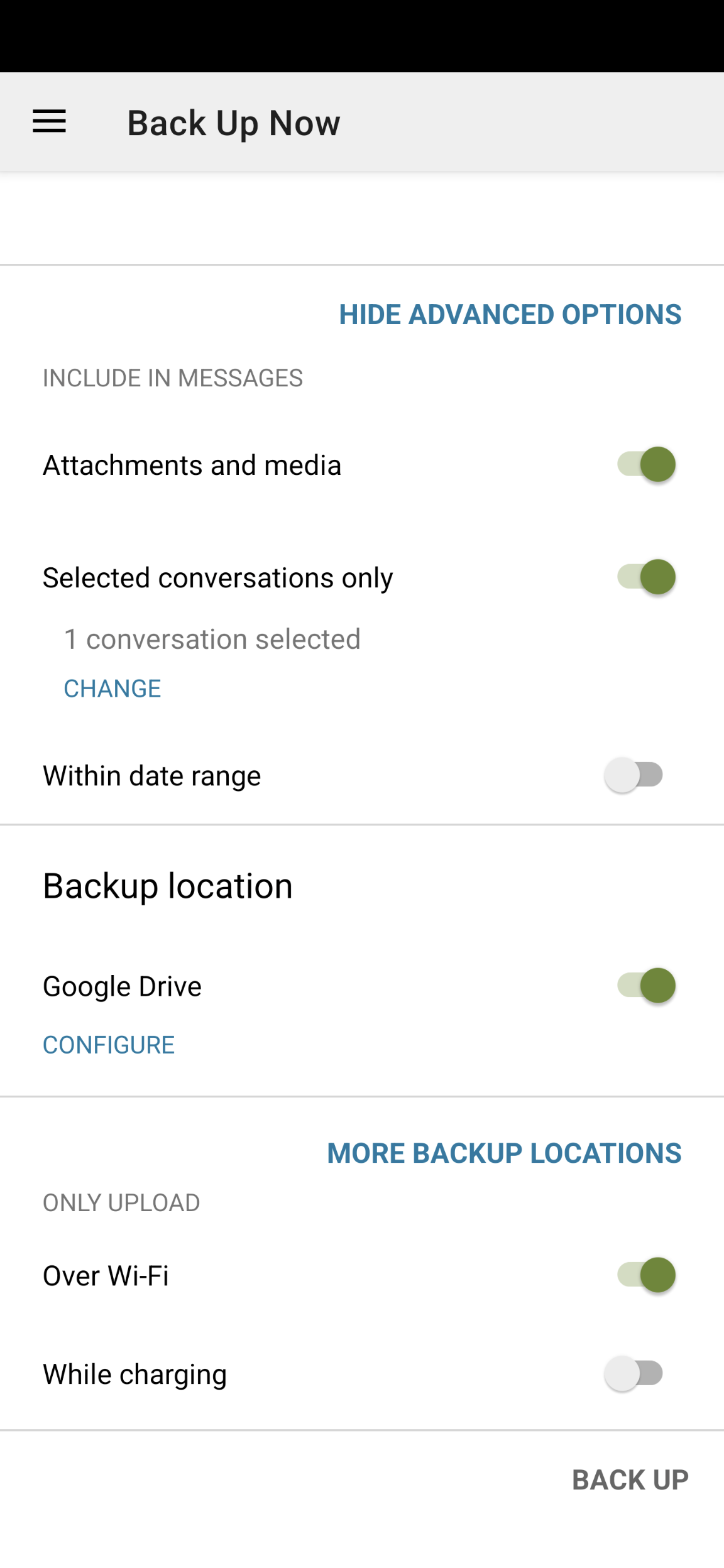
- Tap “Advanced Options”
- Attachments and media - Required
- Selected Conversations only - Enable this, and then select which conversations to export
- Within date range - Optional, your attorney’s staff can also handle this but if you know the relevant date range you may set it to only include messages that fall within those dates.
- Choose where to save the backup:
- Google Drive we recommend uploading the backup XML file to Google Drive so it is easy to find/download on a PC or Mac/share with your attorney
- Your Phone SMS Backup and Restore should also save the XML backup file to your phone by default
- Tap “Back Up”
- Wait for the backup to complete
Step 3: Download the Backup XML File
After the backup completes, you need to find the XML file:
- Log into Google Drive
- Look for a file named similar to:
sms-YYYYMMDDHHMMSS.xml- Example:
sms-20250115143022.xml - Search for sms xml if you don’t see it in the recent files
- Example:
- Click the three vertical dots to the right of the filename, then click Download
Step 4: Send the File to Your Attorney
Your attorney’s staff should be able to give you instructions on how to securely deliver the XML backup file.
This may involve sending you a link to a private client upload folder via SharePoint, or asking you to upload the file to Google Drive and use the Share feature.
Optional: Device Information
Your attorney may request your phone’s device name and serial number for documentation purposes. To find this:
- Open Settings on your phone
- Scroll down and tap About Phone (or About Device)
- Look for:
- Device name (or Model name)
- Serial number
- Long press on the Device name and then press Copy, then paste it into an email to your attorney
- Tap on Model
- Long press on Serial number, and then press Copy, then paste it into an email to your attorney
Troubleshooting
The backup file is very large
Large backup files (over 25MB) may be too big to email. Use a cloud storage service like Google Drive to share the file instead.
The app asks for permissions
SMS Backup & Restore needs permission to access your messages. Grant the requested permissions to proceed.
Next Steps
After sending the backup file to your attorney, they will use TextExhibit to convert your messages into court-ready PDF documents. You do not need to install or use TextExhibit yourself.