FAQ
Find answers to common questions about TextExhibit.
General Questions
What is TextExhibit?
TextExhibit Desktop for iPhone Backups and TextExhibit Android App convert text messages from iPhone and Android devices into professionally formatted, court-ready PDF documents. They’re used by attorneys, paralegals, and anyone who needs to convert text message evidence into professional PDF documents.
Do I have to be a paralegal to use TextExhibit?
No, you do not need any legal training to use TextExhibit. If you are a client and your attorney has requested that you provide text messages, you can download our free trial and send them the output to evaluate. Even if your attorney/paralegal are not ready to purchase new software, you can still buy a license on your own as using it to convert your text messages into court-ready PDFs will likely save far more in time billed for your case than what we charge for our software.
What platforms does TextExhibit support?
TextExhibit runs on:
- Android phones
- Windows 10 and Windows 11
- macOS 13 (Ventura) and later on Apple silicon (M1 or newer) or Intel Macs. Choose the Mac installer that matches your processor.
Is my data sent to any servers?
No. TextExhibit processes all data locally on your computer or phone. Your text messages never leave your machine. See our Privacy Policy for more details.
Android-Specific Questions
Some text messages are missing from my Android export. Why?
First, try TextExhibit’s built-in RCS recovery flow. It has recovered missing RCS conversations on some phones:
- Open TextExhibit and complete the normal conversation scan.
- Tap Missing a conversation or recent RCS messages?, or open the top-right ⋮ menu and choose Find hidden RCS conversations.
- Read the explanation, tap Continue, and approve Android’s request to make TextExhibit the temporary default SMS app.
- TextExhibit will rescan and report how many additional conversations and messages it found. Select the conversation you need and run the export.
- When the export finishes or is cancelled, follow TextExhibit’s prompt to restore your usual messaging app right away.
Important: You do not need to turn on Airplane mode. TextExhibit saves incoming standard SMS messages while it is the default, but it cannot save incoming MMS or RCS/chat messages. TextExhibit is not intended to remain your default messaging app, so switch back to your usual messaging app as soon as the export finishes.
If your installed version does not yet have Find hidden RCS conversations, use the manual fallback: open Android Settings > Apps > Default apps > SMS app, temporarily select TextExhibit, force close and reopen TextExhibit, run the export, and then immediately restore your usual SMS app.
Also make sure you are using the latest version of TextExhibit and that you did not set a date range that excludes the missing messages.
If recovery makes the messages appear, the records were present on the phone but Android restricted them to the current default SMS app. If messages are still missing, the most common cause is RCS, called “RCS chats” or formerly “chat features” in Google Messages. Android’s documented Telephony provider gives ordinary apps access to SMS and MMS records. On some phones and Android versions, temporarily becoming the default SMS app can also reveal RCS-backed records that Android hides from non-default apps. This behavior is device-dependent and is not limited to Android 17. However, Android still does not provide a general consumer API for reading a messaging app’s complete RCS history. Google can include RCS in its own Android backup and restore service, but that does not guarantee the complete restored history will be available to an export app.
This can appear as:
- One or several missing messages, sometimes after a conversation switched between SMS/MMS and RCS.
- An entire conversation missing, especially when it contains only RCS messages.
- Older history missing after a new phone, restore, or messaging-app change, even though Google Messages can still display it.
TextExhibit can export every record Android returns while it has access, but some RCS history may remain only in Google Messages’ private storage or Google’s cloud backup and may not appear even during the default-app test. Google does offer RCS access to approved archival apps on fully managed enterprise devices, but Google currently provides no equivalent supported access to complete RCS history on ordinary consumer phones.
Has this been reported to Google?
Yes. Two public Android Issue Tracker reports now document the problem:
- TextExhibit’s report asks for user-authorized access to complete RCS history. On July 10, 2026, Google assigned the report and said it had been shared with its product and engineering team.
- A separate developer’s report documents outgoing RCS messages missing from Android’s Telephony database, producing exports that contain only the incoming side of a conversation on some devices.
Google’s response acknowledges that the issue is under review, but it does not yet confirm the root cause, promise a change, or provide a timeframe for a fix. You can sign in to the Issue Tracker and select Vote: I am impacted on either report to follow it and show Google how many users are affected. Because the reports are public, do not post phone numbers, message contents, screenshots containing private conversations, or other sensitive information there.
How to verify the cause:
- Complete TextExhibit’s built-in RCS recovery flow above and check whether the conversation or message count changes.
- If messages are still missing, open the same conversation in another ordinary SMS app or create a backup with SMS Backup & Restore.
- If the messages remain unavailable after the test and are also missing from other export apps, but are still visible in Google Messages, Android/Google Messages is not exposing those records through the SMS/MMS provider that export apps can read.
What you can do:
- If you still have the old phone, export from that phone before resetting, trading in, or erasing it. It may expose more of the history than the new phone.
- For a small number of unavailable messages, preserve screenshots from Google Messages and include them as supplemental exhibits.
- Turning off RCS will not recover earlier messages. It only changes how future messages are sent.
- Contact TextExhibit support with the phone model, Android version, Google Messages version, and the two message counts. We can help determine whether Android supplied the records to TextExhibit.
Please also send feedback from the affected phone. Open Google Messages, tap your profile picture, then choose Help & feedback > Send feedback. Allow one-time access to system logs if Google offers it. Include your phone model, Android and Google Messages versions, carrier, the approximate date and time of a missing RCS message, and whether the problem began after an update, restore, or phone migration. Ask Google to provide a user-authorized way for consumer export apps to read or export the complete RCS history. In-device feedback can include diagnostic information that an Issue Tracker vote or general forum post does not.
TextExhibit Android App will not open, crashes immediately, or appears stuck at startup. What should I do?
First, uninstall TextExhibit completely, restart your phone, and reinstall the app from Google Play. Your Android purchase is tied to your Google account, so reinstalling from the same Google account should not charge you again.
This can happen if Android or Google Play installs an incomplete or corrupted copy of the app, or if saved app data from a previous install becomes stuck. Reinstalling gives Android a clean copy of the app and resets its startup state.
If the app still will not open after reinstalling, contact support and include your phone model, Android version, and the approximate time the crash happened.
My Android phone is low on storage. What are my options?
TextExhibit can automatically use low-storage streaming mode when the phone does not have enough internal storage to stage the full export. In this mode, each PDF and its media files are written to the output folder as they finish instead of waiting for the entire export to complete. The result is a folder of files rather than a single ZIP archive.
You can also reduce the amount of phone storage needed for the export:
- Save directly to Google Drive. In the Output Folder picker, tap the three-line menu icon in the top-right, choose Drive from the list, and select a Google Drive folder instead of a folder on your phone’s storage.
- Choose a network drive as the output location. If your network storage appears in Android’s folder picker, select a folder on that drive before starting the export. Keep the phone connected to the same network until the export finishes.
- Use a connected SSD. Connect a compatible external SSD to the phone, select it in Android’s folder picker, and leave it connected for the entire export. Make sure the SSD has enough free space and, if necessary, external power.
- Free space with Google Photos. First confirm that your photos and videos are fully backed up to Google Photos. Then use Google Photos’ Free up space on your device option to remove backed-up local copies from the phone. Do not manually delete message attachments or any source evidence you still need.
Streaming mode lowers peak internal-storage use, but TextExhibit still needs some free space to build the current PDF and process its attachments. Keep at least about 1 GB free on the phone, and make sure the selected output location has enough room for the completed export. For very large exports, using a date range to export one year at a time can also help.
I tried to open an exported video on Android and got a “Problem with this file” message. How do I play the video?
This is an issue with Android, not our app. We recommend downloading the VLC app which does not have any problems playing all exported video formats.
How do I get the device serial number for Android?
Android apps cannot access the device serial number for security reasons. If you need this information in your PDF footer, ask your client to:
- Open Settings > About Phone
- Find and copy the Device name and Serial number
- If they are using TextExhibit Android App, they can paste this into the Serial number box. Otherwise, they may send this information to you via email
iPhone-Specific Questions
What is TextExhibit Extractor?
TextExhibit Extractor is a free companion tool that your clients can use to create .textexhibit files. It extracts only the specific conversations they choose from their iPhone backup, packaging them into a single file that’s easy to transfer to you. See the iPhone Backup Instructions for details.
Where are full iPhone backups stored?
If working with full iPhone backups (instead of .textexhibit files):
- Windows:
C:\Users\[Username]\Apple\MobileSync\Backup\ - Mac:
~/Library/Application Support/MobileSync/Backup/
My client forgot their backup password. What can they do?
If your client doesn’t remember their backup password, they can create a new unencrypted backup. In the Apple Devices app (Windows) or Finder (Mac), uncheck the “Encrypt local backup” option before creating a new backup.
Can I read a backup from iCloud?
No. TextExhibit only supports local backups. iCloud backups cannot be accessed directly. Ask your client to create a local backup on their computer and use TextExhibit Extractor to create a .textexhibit file.
Backup Format Questions
What Android backup format does TextExhibit support?
Our TextExhibit Android App runs directly on your phone and completely eliminates the need to create a backup and transfer it to a desktop computer.
TextExhibit Desktop for iPhone Backups also supports XML backups created by the SMS Backup & Restore app, available free on the Google Play Store. The backup files are typically named sms-YYYYMMDDHHMMSS.xml and mms-YYYYMMDDHHMMSS.xml.
What iPhone backup format does TextExhibit support?
TextExhibit supports two iPhone formats:
- Full iPhone backups - Reads Finder backups on macOS and Apple Devices backups on Windows. Both encrypted and unencrypted backups are supported.
.textexhibitfiles - Created by your client using TextExhibit Extractor. This packages only the selected conversations into a single, easy-to-transfer file.
Can TextExhibit read encrypted iPhone backups?
Yes, but you will need the backup password. TextExhibit will prompt you to enter the password when you select an encrypted backup. If you don’t know the password, ask your client or create a new unencrypted backup.
Does TextExhibit support WhatsApp or other messaging apps?
Currently, TextExhibit only supports native SMS/MMS messages. WhatsApp, Facebook Messenger, and other third-party messaging apps are not supported at this time.
My client’s backup file is very large. What should I do?
Large backup files (over 25MB) may be difficult to email. Ask your client to upload the file to a private client upload folder via SharePoint or to a cloud storage service like Google Drive or Dropbox and share the link with you.
Output & Features Questions
What is Bates numbering?
Bates numbering is a method of indexing legal documents for easy identification and retrieval. Each page receives a unique sequential identifier (e.g., DOC-000001, DOC-000002). TextExhibit can automatically add Bates numbers to every page of your output PDFs.
What is the hash verification report?
The verification report documents the integrity of your source files and output PDFs using cryptographic hashes (SHA256 and MD5). This provides chain of custody documentation showing that the files have not been tampered with.
How are large conversations handled?
Conversations with more than 100 messages are automatically split into monthly PDFs for easier navigation. Each PDF covers one calendar month of messages.
Can I filter messages by date?
Yes. TextExhibit includes date range filters so you can include only messages from a specific time period relevant to your case.
What happens to images and videos in messages?
MMS attachments (images, videos, audio) are extracted and saved to a media folder. The PDFs reference these files so you can view them alongside the message content.
The blue link to view the full-size photo isn’t working in my exported PDFs. Is this a trial limitation?
No — this is unrelated to the trial. It’s a limitation of the PDF viewer you’re using. The exported PDFs link to image files saved next to the PDF (in an images subfolder), and not every PDF viewer follows clickable links to local files.
Viewers that handle these links well:
- Google Chrome (Windows and Mac)
- Foxit PDF Reader (Windows and Mac)
- Adobe Acrobat Reader (Windows and Mac)
Viewers that commonly don’t follow the link:
- macOS Preview — the built-in Mac viewer does not open links to external local files
- Microsoft Edge’s built-in PDF viewer — blocks local file links for security
- Mobile PDF viewers on iPhone and Android (Files / Books / Quick Look on iOS, Google Drive viewer and most default Android viewers) — they generally cannot open links to other local files
If you are previewing a PDF inside of a .zip file you will need to extract the .zip and reopen the extracted PDF for relative links to full-size media to work.
You can always view the full-size images directly: open the folder containing your exported PDFs. You’ll see an images subfolder with every extracted photo and video at full resolution. This works under the free trial as well.
Licensing Questions
Is there a trial?
Yes. TextExhibit runs in trial mode with watermarks on output PDFs and some text messages redacted. This allows you to fully evaluate the software before purchasing.
How do I activate my license?
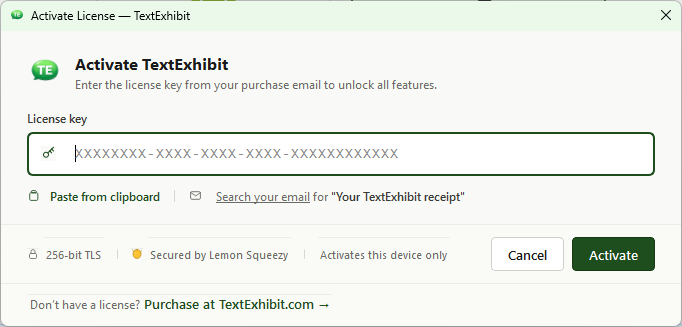
After purchasing, go to Help > Activate License in TextExhibit, enter your license key, and click Activate. See the Purchase page for detailed instructions.
Can I use my license on multiple computers?
Yes, if your license includes multiple seats. Use the same Lemon Squeezy license key to activate TextExhibit on up to the number of computers covered by your purchase. A Personal iPhone license is tied to one iPhone rather than one computer and may be activated on up to three computers for use with that licensed iPhone. A single-seat Annual or Monthly license covers one computer. See the Purchase page for details.
Are the desktop and Android licenses the same?
No. TextExhibit Desktop for iPhone Backups and TextExhibit Android App have separate licenses. Purchasing a TextExhibit Desktop for iPhone Backups license does not unlock TextExhibit Android App, and unlocking TextExhibit Android App via in-app purchase does not grant you a TextExhibit Desktop for iPhone Backups license. Each must be purchased independently.
Can my firm share one Android purchase?
No. The TextExhibit Android App unlock is a personal license for one person to use on their own devices. It may not be shared across an organization, used through a shared Google account, or used on clients’ or employees’ phones.
To export a client’s messages, we recommend having the client install TextExhibit Android App and purchase the Full Version on their own phone. The license is then the client’s, and their messages stay on their phone until they choose to share the finished export with you.
See the Android Terms of Use. For business use, contact support@textexhibit.com.
Can my firm pay for a client’s Android copy?
Yes. Send the client a digital Google Play gift card, and they can use the balance for the in-app purchase. Choose a value that covers the price plus sales tax. See Paying for a Client’s Copy with a Google Play Gift Card for step-by-step instructions and a message you can send your client.
Still Have Questions?
If you didn’t find your answer here, please contact support.