iPhone Backup Instructions
This guide is for clients who need to create a backup of their iPhone containing their text messages. The backup will be sent to or accessed by your attorney or paralegal for processing with TextExhibit.
Overview
Unlike Android, iPhones do not allow exporting text messages directly. Instead, you will first need to create a full device backup using your computer and Apple’s officially supported method.
Next, you’ll use TextExhibit Extractor – our small tool that extracts/packages only the specific conversations you choose to share with your legal team.
Windows Instructions
On Windows, you’ll use the Apple Devices app (formerly iTunes) to create a backup.
Step 1: Install Apple Devices
If you don’t already have it, download and install the Apple Devices app:
Download Apple Devices from Microsoft Store
For detailed instructions, see: Apple Support - Back up iPhone on Windows
Step 2: Connect Your iPhone
- Connect your iPhone to your Windows PC using a USB cable
- If prompted on your iPhone, tap “Trust” and enter your passcode
- Open the Apple Devices app on your Windows PC
- Select your iPhone from the sidebar
Step 3: Create a Backup
- In the Apple Devices app, select your iPhone
- Click “General” in the sidebar
- Under Backups, select “Back up all of the data on your iPhone to this PC”
- Important: Decide on encryption:
- Unencrypted backup - You won’t have to enter your encryption password in the next step
- Encrypted backup - Write down the encryption password you choose, you’ll need it for the next step if you choose Encrypted Backup.
- Click “Back Up Now”
- Wait for the backup to complete (this may take several minutes)
Step 4: Install TextExhibit Extractor, allow it to locate iPhone backup
Download and install our small tool that extracts/packages only the specific conversations you choose to share with your legal team:
download Download TextExhibit Extractor for WindowsOpen TextExhibit Extractor. You should be able to see the iPhone backup you created above selected in Step 1 in the UI.
Mac Instructions
On macOS Catalina (10.15) or later, you’ll use Finder to create a backup. On older macOS versions, use iTunes.
Step 1: Connect Your iPhone
- Connect your iPhone to your Mac using a USB cable
- If prompted on your iPhone, tap “Trust” and enter your passcode
- Open a Finder window
- Select your iPhone in the sidebar under Locations
For detailed instructions, see: Apple Support - Back up iPhone using Finder
Step 2: Create a Backup
- In Finder, with your iPhone selected, click the “General” tab
- Under Backups, select “Back up all of the data on your iPhone to this Mac”
- Important: Decide on encryption:
- Unencrypted backup - You won’t have to enter your encryption password in the next step
- Encrypted backup - Write down the encryption password you choose, you’ll need it for the next step if you choose Encrypted Backup.
- Click “Back Up Now”
- Wait for the backup to complete (this may take several minutes)
Step 3: Install TextExhibit Extractor, allow it to locate iPhone backup
Download and install our small tool that extracts/packages only the specific conversations you choose to share with your legal team:
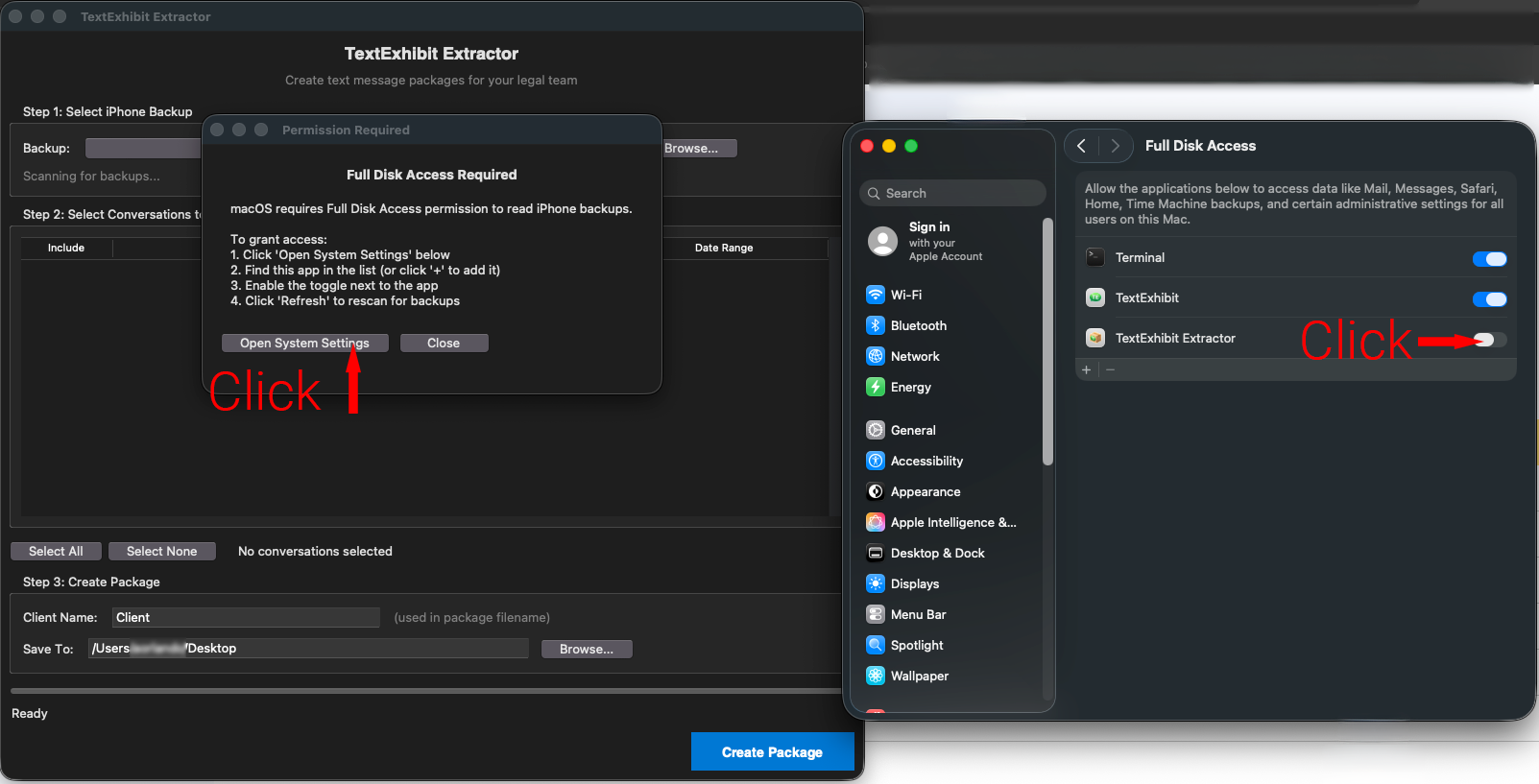
download Download TextExhibit Extractor for MacOpen TextExhibit Extractor. On MacOS, this app must be granted Full Disk Access to locate your iPhone backup. You’ll see a dialogue asking you to Open System Settings. Click that button, then click
Create .textexhibit package file using TextExhibit Extractor
Select Conversations to Include:
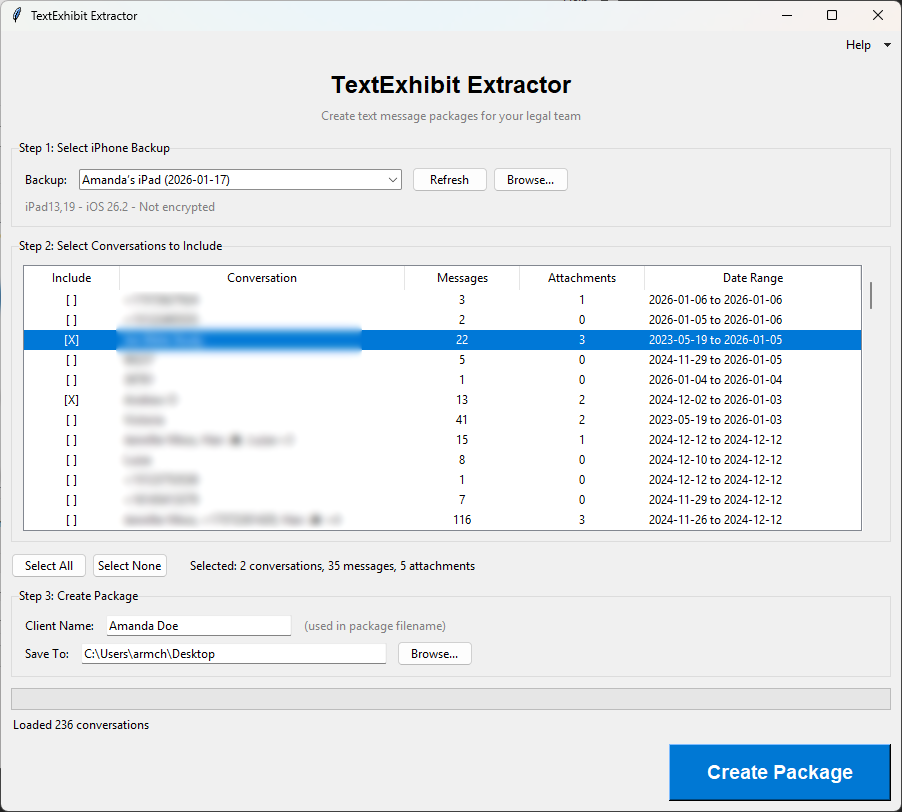
Click “Create Package”.
Final Step: Send the .textexhibit File to Your Attorney
Your attorney’s staff should be able to give you instructions on how to securely deliver the .textexhibit backup file.
This may involve sending you a link to a private client upload folder via SharePoint or asking you to upload the file to Google Drive and use the Share feature.
Troubleshooting
My iPhone won’t connect
- Try a different USB cable
- Make sure to tap “Trust” on your iPhone when prompted
- Restart both your iPhone and computer
The backup is taking forever
iPhone backups can take 30 minutes to several hours depending on how much data is on your phone. Ensure your computer doesn’t go to sleep during the backup.
I don’t have enough disk space
iPhone backups can be 10GB or larger. Free up space on your computer before creating the backup.