iPhone Backup Instructions
This guide explains how to create a backup of your iPhone containing your text messages.
Overview
Unlike Android, iPhones do not allow exporting text messages directly. You will first need to create a full device backup using your computer and Apple’s officially supported method.
Reads Finder backups on macOS and Apple Devices backups on Windows.
Already backed up this iPhone to this computer? Archive that backup first. A new backup replaces the computer’s existing backup of the same iPhone, without any warning. If the iPhone now keeps fewer messages than it used to (for example, because Messages in iCloud stopped keeping older history on the phone), messages that exist only in the old backup are lost. Archiving keeps the old backup as a separate copy that the next backup won’t touch, and TextExhibit can still open it. The steps below show how.
Windows Instructions
On Windows, use the Apple Devices app to create a backup.
Step 1: Install Apple Devices
If you don’t already have it, download and install the Apple Devices app:
Download Apple Devices from Microsoft Store
For detailed instructions, see: Apple Support - Back up iPhone on Windows
Step 2: Connect Your iPhone
- Connect your iPhone to your Windows PC using a USB cable
- If prompted on your iPhone, tap “Trust” and enter your passcode
- Open the Apple Devices app on your Windows PC
- Select your iPhone from the sidebar
Step 3: Keep a Copy of Any Existing Backup
Apple Devices keeps one backup per iPhone and replaces it every time. Before backing up again, copy the existing backup so it can’t be overwritten:
- Open File Explorer and paste
%USERPROFILE%\Apple\MobileSync\Backupinto the address bar, then press Enter. (If you use iTunes downloaded from Apple’s website, the folder is%APPDATA%\Apple Computer\MobileSync\Backupinstead.) - If the folder doesn’t exist or is empty, there’s nothing to keep. Skip to Step 4.
- Otherwise, select your iPhone’s backup folder (it has a long name of letters and numbers; if there are several, check Date modified), press Ctrl+C, then Ctrl+V. Windows creates a copy whose name ends in "- Copy".
Apple Devices never changes the copy, and TextExhibit lists it as a separate backup. The copy takes as much disk space as the original backup.
Step 4: Create a Backup
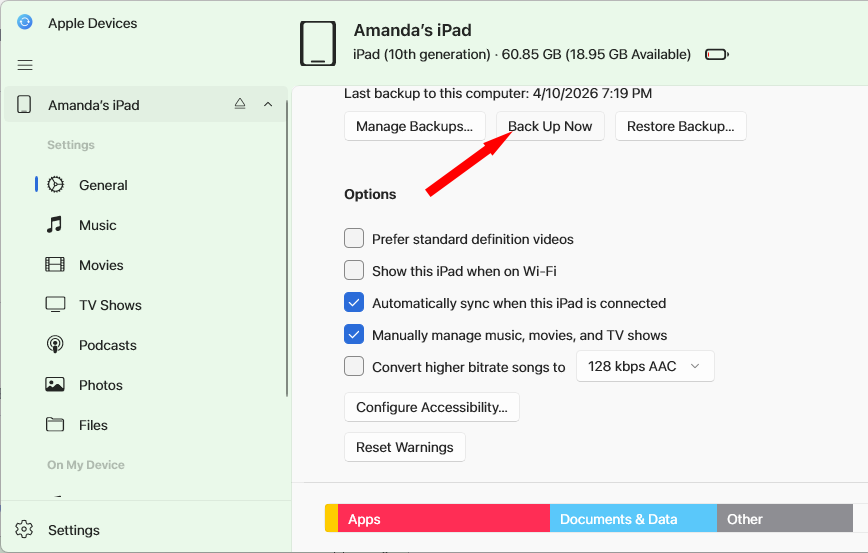
- In the Apple Devices app, select your iPhone
- Click “General” in the sidebar
- Under Backups, select “Back up all of the data on your iPhone to this PC”
- Important: Decide on encryption:
- Unencrypted backup - You won’t have to enter your encryption password in the next step
- Encrypted backup - Write down the encryption password you choose, you’ll need it for the next step if you choose Encrypted Backup.
- Click “Back Up Now”
- Wait for the backup to complete (this may take several minutes)
Mac Instructions
On macOS Catalina (10.15) or later, use Finder to create a backup.
Step 1: Connect Your iPhone
- Connect your iPhone to your Mac using a USB cable
- If prompted on your iPhone, tap “Trust” and enter your passcode
- Open a Finder window
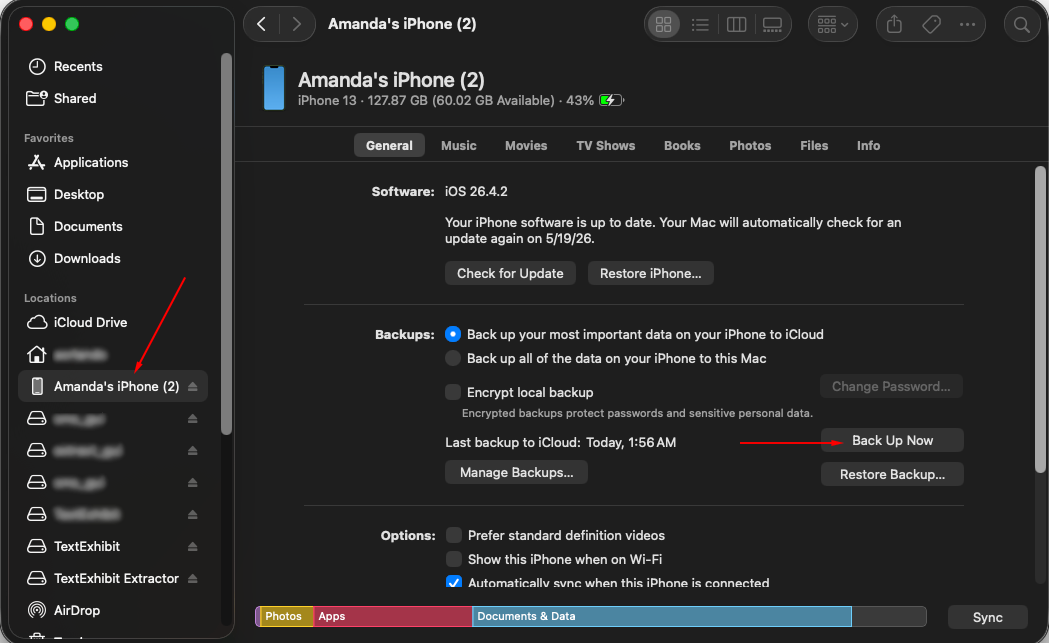
- Select your iPhone in the sidebar under Locations
For detailed instructions, see: Apple Support - Back up iPhone using Finder
Step 2: Archive Any Existing Backup
Finder keeps one backup per iPhone and replaces it every time. If this Mac has backed up your iPhone before, archive that backup first so it can’t be overwritten:
- In Finder, with your iPhone selected, look at Last backup to this Mac under Backups. If your iPhone has never been backed up to this Mac, skip to Step 3.
- Click “Manage Backups…”
- Control-click (or right-click) your iPhone’s backup and choose “Archive”, then click OK.
The archived backup shows a lock and the date it was archived. Finder won’t replace it, and TextExhibit can still open it.
Step 3: Create a Backup
- In Finder, with your iPhone selected, click the “General” tab
- Under Backups, select “Back up all of the data on your iPhone to this Mac”
- Important: Decide on encryption:
- Unencrypted backup - You won’t have to enter your encryption password in the next step
- Encrypted backup - Write down the encryption password you choose, you’ll need it for the next step if you choose Encrypted Backup.
- Click “Back Up Now”
- Wait for the backup to complete (this may take several minutes)
Next Step
Generating PDFs yourself using TextExhibit? Continue with Step 1: Select iPhone as the source.
Packaging specific conversations to send to a legal team? Continue with TextExhibit Extractor to create a .textexhibit file.
Troubleshooting
My iPhone won’t connect
- Try a different USB cable
- Make sure to tap “Trust” on your iPhone when prompted
- Restart both your iPhone and computer
The backup is taking forever
iPhone backups can take 30 minutes to several hours depending on how much data is on your phone. Ensure your computer doesn’t go to sleep during the backup.
I don’t have enough disk space
iPhone backups can be 10GB or larger. Free up space on your computer before creating the backup.
My new backup has fewer messages than an older one
An iPhone doesn’t always keep its whole message history on the phone. With Messages in iCloud, for example, older messages may no longer be stored on the phone, so a new backup can contain far fewer messages than an earlier one. If you archived or copied the earlier backup, open it in TextExhibit; it appears in the backup list with the same device name and an earlier date. Don’t back up the iPhone again until you’ve confirmed you have the copy you need.